How to add staging animations
Staging animations play a short reveal effect in the listing video — the room transitions from empty to virtually staged. The toggle is on step 5 of 7 of the order flow, on the Which look? screen, just below the furniture style grid. It only does something when virtual staging is also turned on.
→ Go to My Listings ↗ See the difference
Both videos below are real Halo listing sites. The left has staging animations off — rooms appear as photographed. The right has staging animations on — watch for the transition as each room is revealed.
Staging animations off
No reveal effect. Rooms appear exactly as shot — static cuts between scenes.
Staging animations on
Watch for the reveal. Each room transitions from empty to virtually staged as the clip plays.
Tip: scrub to a room scene in each video to compare the transition side by side.
How to turn staging animations on
You reach it while ordering the listing. On step 5 of 7 — the Which look? screen where you pick the furniture style — scroll past the style grid and the Staging animations row is directly underneath. Toggle it on.
117 View Dr #D-r, Jerome, ID, 833385/7
Virtual staging
Which look?
The furniture style Halo places in every staged room.
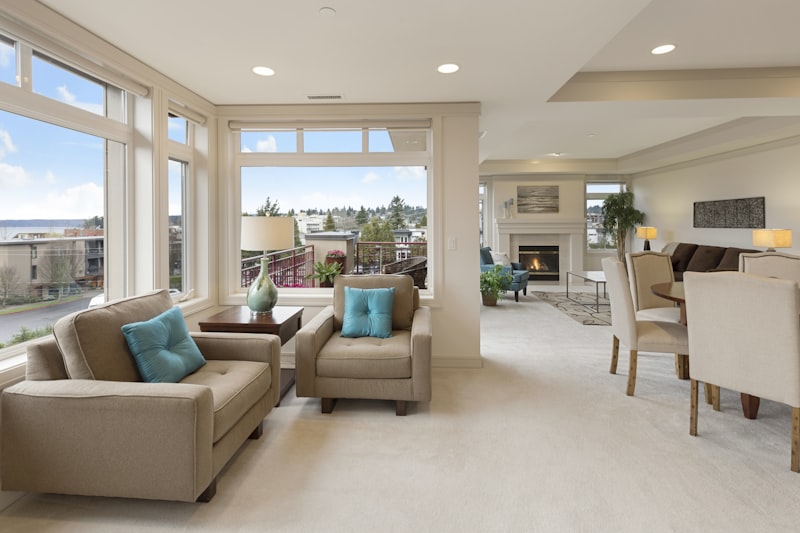
Transitional
Safe default · warm neutrals
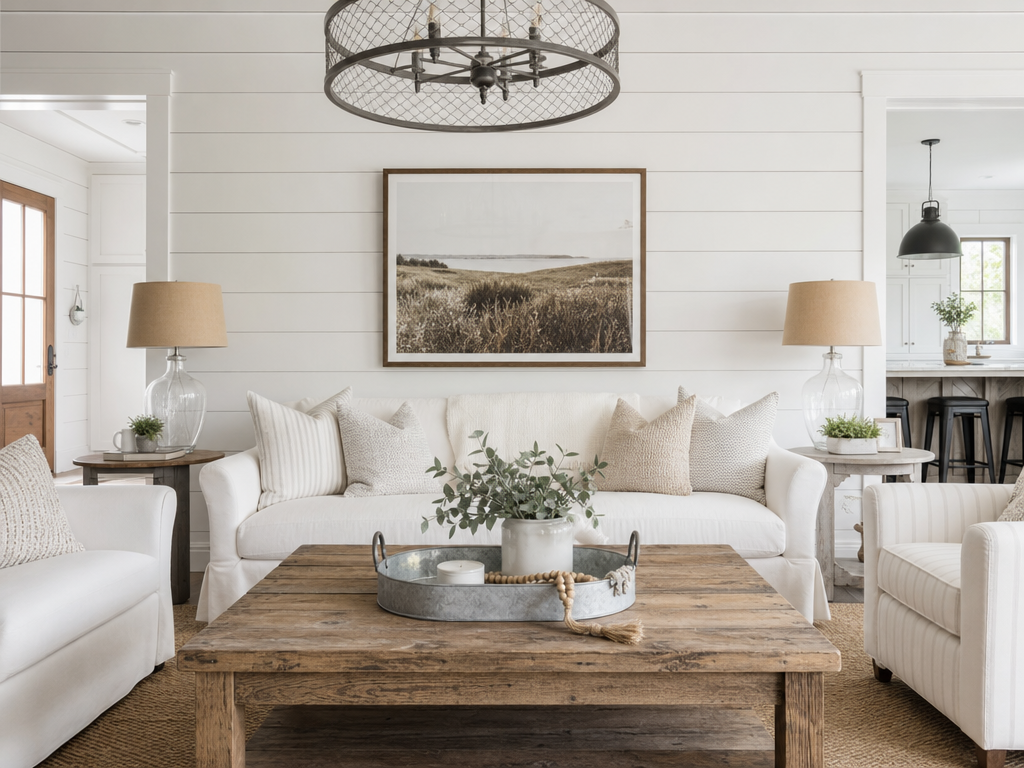
Modern Farmhouse
Shiplap · reclaimed wood
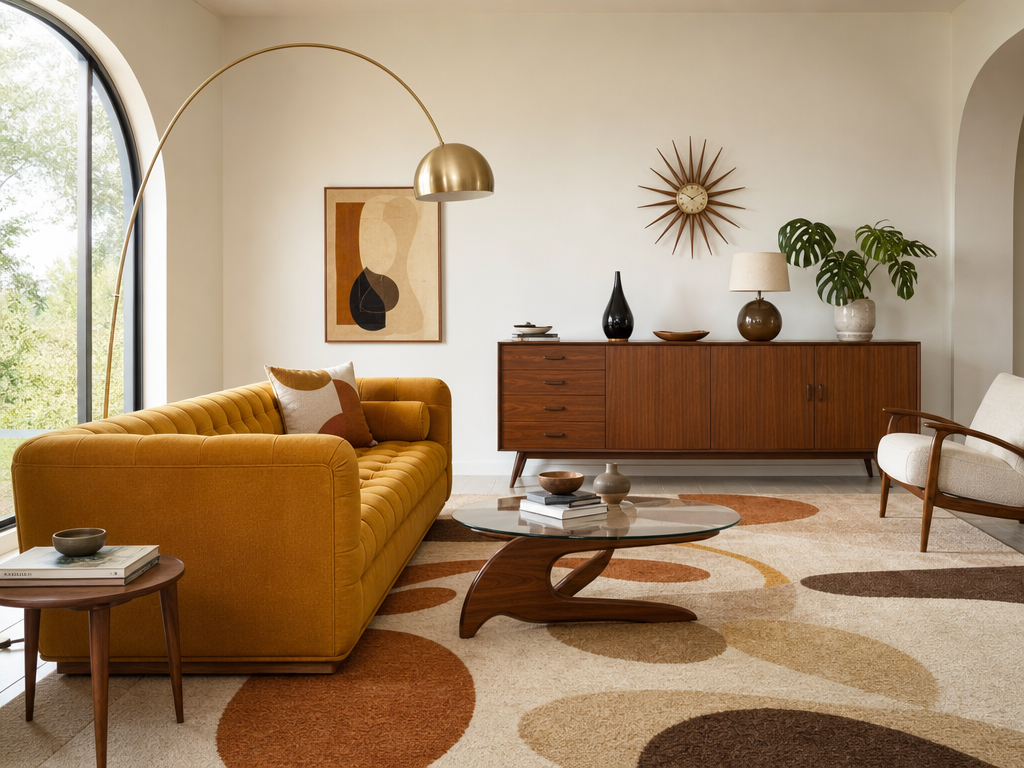
Mid-Century Modern
Walnut · mustard · retro
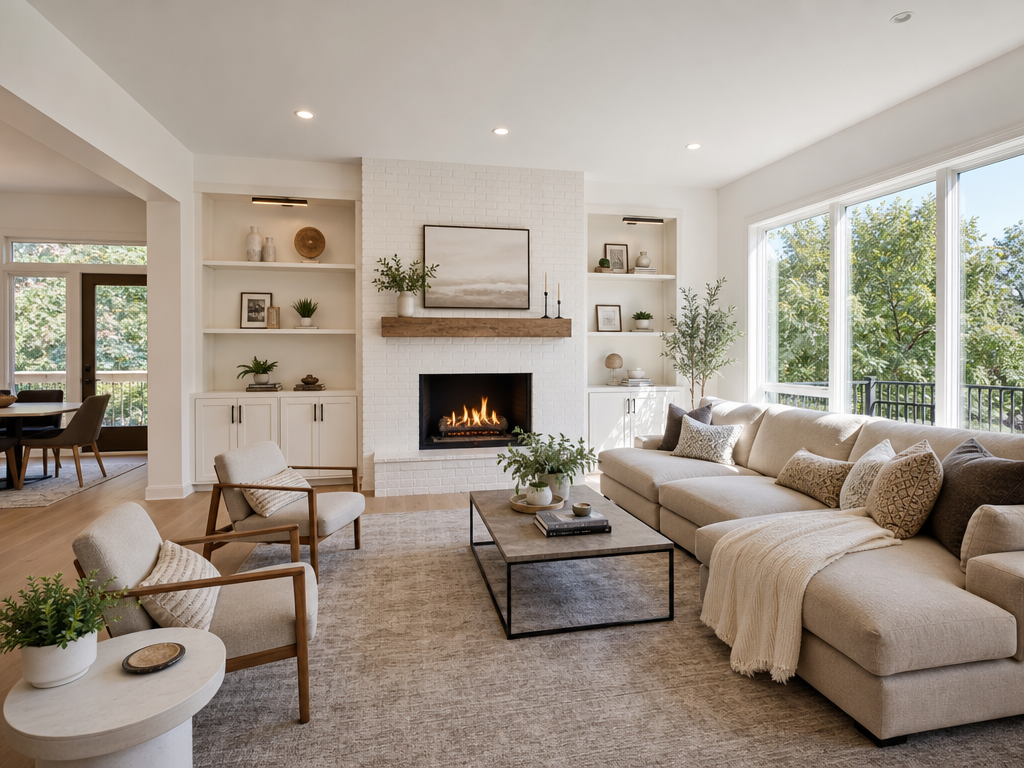
Staging animations
Animate the vacancy — staged transition in room clips.
Step 5 of 7, the Which look? screen. Pick the furniture style, then flip Staging animations on in the row directly below the grid (highlighted).
Already professionally staged?
If your listing photos already have real furniture in them, turn virtual staging off — staging animations work with any furnished room, real or virtual. The reveal effect plays on whatever furniture is in the shot.
Still stuck? The support team can help.
Email support@huzi.ai